Boost Your Workflow with Structured MCP
June 3, 2026
Long time, no blog post. And to celebrate the resurrection of our blog, we're presenting an exciting new feature: a Structured MCP server! 🎉
Boost your workflow by connecting your preferred AI assistant to your Structured daily planner. Scheduling tasks and staying aligned with your plans has never been easier, and we're going to show you how!
What is the Structured MCP Server?
To understand what the Structured MCP server is, let us first explain what an MCP is, as it might not be as trivial as our smart developers think. MCP stands for Model Context Protocol, an interface created by Anthropic that allows Large Language Models (LLMs) to access tools and data.
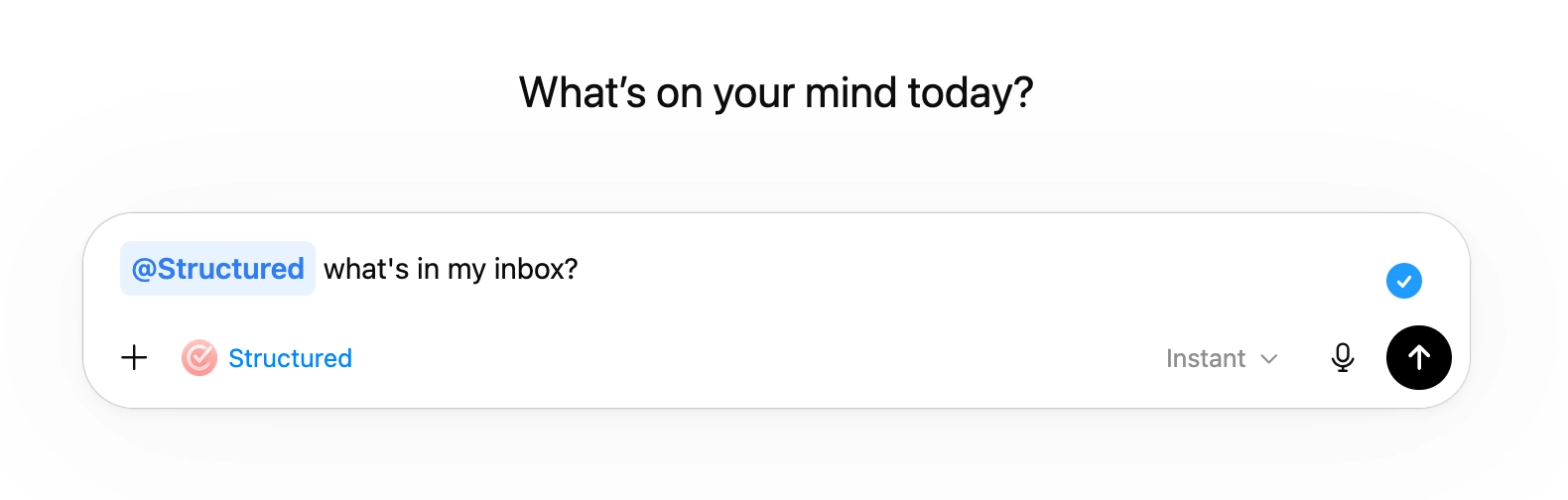
Still too technical? Sorry about that, let's look at it this way: the Structured MCP server acts as a bridge between your preferred AI assistants, such as ChatGPT or Claude, and your Structured timeline. Put even more simply, by connecting your preferred AI tool with Structured, you can write prompts (instructions) in the AI chat to retrieve information about your tasks in Structured or make changes that are then synced back to your actual schedule in Structured. Cool, right?
What AI Assistants are Supported?
Since everyone has their own preference when it comes to AI assistants, we're offering a broad variety of options that can be connected with Structured, with even more to come. Currently, we support ChatGPT, Claude Desktop, Claude Code, Google Antigravity, Google Gemini CLI, and OpenCode.
How to Set Up the Structured MCP Server
So, now you're probably wondering, how can I use this awesome tool? To make the magic happen, you'll first need to set up the Structured MCP server. Depending on your AI assistant, this can be a little tricky, but we promise it's worth it!
You can find detailed setup instructions in our Help Center by following this link. And if you still run into any issues, our support team has got your back.
How to Use the Structured MCP Server
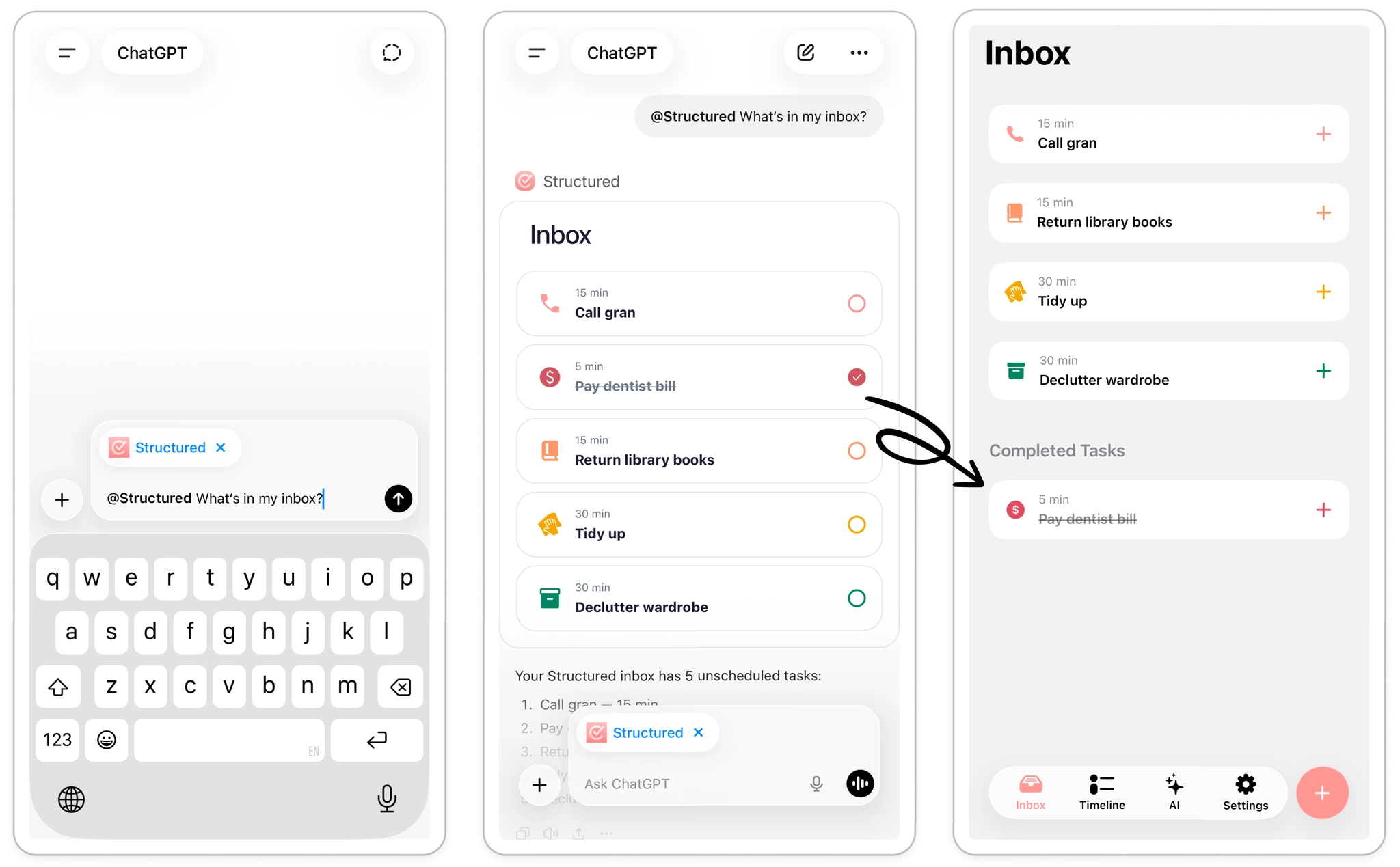
Finally, after all the technical blah blah, let's cut to the chase: using the Structured MCP server is super easy. Simply ask your AI assistant to list today's tasks, check which to-dos are sitting in your inbox waiting to be completed, or reschedule your week without even opening Structured. You can even check off tasks directly from the Structured widget in your AI chat.
Example Prompts
To give you an idea of how to make the most of your schedule, check out these example prompts:
View Schedule
@Structured what is on my timeline today?
@Structured what is in my inbox?
@Structured list all of last week's unfinished to-dos.
Create Tasks
@Structured create an all-day grocery shopping task for making lasagna with all ingredients as subtasks.
@Structured create a blue-colored task for the afternoon to tidy up using a vacuum icon.
@Structured create a weekly recurring task for Thursdays at 5pm that lasts an hour for my weekly run.*
*Creating recurring tasks requires ⭐️ Structured Pro
Update Tasks
@Structured move all of today's tasks by one hour.
@Structured change the color of all events called "Meeting" to orange.
Complete Tasks
@Structured mark all of today's tasks as done.
@Structured mark all work-related tasks as done.
Delete Tasks
@Structured delete all of today's completed tasks.
@Structured clear tomorrow's entire schedule.
Let Us Know What You Think!
Since this is a big new feature for us too, we'd love to hear your feedback and see how you're making the most of your schedule with the new Structured MCP app. Tag us on Instagram or TikTok and show us the magic the MCP brings to your schedule.